Introduction
This is a simplified and condensed (TL;DR) version of the original tutorial. If you prefer a little bit longer (but more entertaining) one, consider reading the original one. This version is my intermediate product to build the tutorial in Thai. I used AI to help with summarize each page, then I review and edit myself.
This tutorial teaches the Jujutsu version control system (VCS). It's designed for beginners with no previous experience with Git or any other VCS.
If you already know Git, you might prefer Steve Klabnik's tutorial.
This tutorial uses the terminal. We'll cover the basics, so don't worry if you're new to it. The commands are for Unix-like systems (Linux, Mac). Windows users can use WSL.
What is version control?
Version control helps you track changes in a project over time. It's like having a "save" button for your entire project, allowing you to:
- Go back to previous versions of your work.
- See who changed what, and when.
- Collaborate with others without overwriting their work.
It's essential for software development, but can be used for any project with files that change over time, like this tutorial itself!
Why Jujutsu instead of Git?
Git is the most popular VCS. So why learn Jujutsu?
- It's Git-compatible. You can use Jujutsu with any Git project.
- It's easier to learn. Jujutsu has a simpler, more intuitive interface than Git.
- It's more powerful. Despite being simpler, Jujutsu has advanced features that surpass Git's.
However, there are some trade-offs:
- Git-centric World: Most developers use Git, so you may need to "translate" concepts when talking to them.
- Missing Features: Jujutsu is new and doesn't have every single Git feature yet, though you can fall back to Git when needed.
- Unstable CLI: The command-line interface is still evolving, so commands might change in future versions.
Despite these points, the benefits of learning Jujutsu are well worth it.
Tutorial Structure
This tutorial is divided into levels. It's recommended to practice what you've learned after each level before moving on.
If you're collaborating with others, please complete levels 1 and 2.
| Level | Description |
|---|---|
| 1 | The basics for solo projects. |
| 2 | The basics for collaboration. |
| 3 | Undoing mistakes, resolving merge conflicts, and restoring files. |
Resetting Your Progress
This tutorial builds an example repository. Chapters build on previous ones. If you get stuck or want to start a chapter fresh, you can use a reset script.
Each chapter provides the exact command to reset to its beginning. For example:
To reset your progress to the start of this chapter, run the following command:
curl https://s2p2.github.io/jj-for-everyone/reset.sh | bash -s install
If you prefer not to run a script directly from the internet, you can download it, inspect it, and run it locally.
Stay up to date
This is a simplified version of the original tutorial. It may not be up-to-date, and currently only covers the first 3 levels.
To stay informed about updates to the original tutorial, please refer to the original tutorial's "Stay up to date" page.
The current tutorial is considered up-to-date with Jujutsu version 0.35, which was released in November 2025. If that's more than a couple months in the past, it may no longer be updated.
Terminal basics
This chapter covers the terminal basics required for the tutorial. If you're already comfortable with the command line, feel free to skip it.
- What is the terminal?
- The prompt
- Entering commands
- The current working directory
- Copy-pasting commands
- Redirection
- Pagers
- Variables and the environment
- The
PATHvariable - Startup scripts
What is the terminal?
The terminal is a text-based application for sending commands to your operating system. It's also known as a "console" or "shell".
The prompt
The prompt is the text that appears when the terminal is ready for your next command. It often ends with a $ or % sign.
[username@hostname ~]$
Entering commands
To run a command, type it and press Enter. The first word is the program's name, and subsequent words are its arguments.
For example, the echo program prints its arguments:
$ echo Hello, terminal!
Hello, terminal!
The first word is the program to run.
The terminal will find a program called echo on your computer and run it with the two arguments Hello, and terminal!.
The program is free to interpret these arguments however it wants.
The program called echo happens to simply print its arguments back to the terminal:
The current working directory
The current working directory (CWD) is your current location in the filesystem. Many commands behave differently depending on your CWD.
Use cd ("change directory") to move to a different directory and pwd ("print working directory") to see your current location. The CWD is often shown in the prompt.
[username@hostname ~]$ cd Downloads
[username@hostname Downloads]$ pwd
/home/username/Downloads
The ~ character is a shorthand for your home directory.
Key takeaway: Always be aware of your current working directory. If a command behaves unexpectedly, you might be in the wrong directory.
Copy-pasting commands
This tutorial has many commands for you to copy. You can copy-paste multi-line commands without issue.
- On Linux/Windows, use Ctrl+Shift+C/V.
- On Mac, Command+C/V works as usual.
If you accidentally use Ctrl+V on Linux/Windows, you'll see strange characters (^[[200~...). Just press Enter to get a fresh prompt and try again.
Lines starting with a pound sign (#) are comments and are ignored by the terminal.
You can practice by copy-pasting the following command into your terminal:
# Here are some example comments:
#
# This is the program being run.
# |
# |  This is the start of the first argument.
# |  |
# |  |      This is the start of the second argument.
# v  v      v
echo Hello, terminal! # Placing a comment next to a command is also allowed.
Redirection
By default, programs print to "standard out" (stdout), which is your terminal. You can redirect stdout to a file using the > operator, which overwrites the file.
echo "bread, onions, tea" > groceries.txt
To append to a file instead, use the >> operator.
Pagers
A pager is a program that displays large amounts of text one screen at a time. Some commands, including jj, will automatically use a pager for long output.
- Press q to quit.
- Use arrow keys or page up/down to navigate.
- Press / to start a search, and use n/N to find the next/previous match.
If you see a colon : at the bottom-left of your terminal, you are likely in a pager.
Variables and the environment
While we often refer to the "terminal" as a whole, it's actually the shell (the program interpreting your commands) that provides scripting features, like variables.
$ my_name=Alice
$ echo Hello, $my_name!
Hello, Alice!
To make a variable accessible to programs you run, you must export it into the environment. These are called environment variables. By convention, their names are uppercase.
export MY_NAME=Alice
The PATH variable
PATH is a special environment variable. It contains a colon-separated list of directories where the terminal searches for programs.
$ echo $PATH
/home/username/.local/bin:/usr/local/bin:/usr/bin
If you try to run a program and get a "No such file or directory" error, the program might not be in a directory listed in PATH. You can add a new directory to PATH like this:
export PATH="/path/to/my-programs:$PATH"
If you mess up your PATH, the easiest fix is to close the terminal and open a new one.
Startup scripts
Changes to environment variables like PATH only last for the current session. To make them permanent, add the export command to a startup script, which runs every time you open a new terminal.
The script's name depends on your shell. Find your shell by running echo $SHELL.
- For
bash, edit~/.bashrc. - For
zsh, edit~/.zshrc.
You can view your script's content with cat ~/.bashrc (or ~/.zshrc).
That's enough terminal knowledge to get you through this tutorial. Don't hesitate to come back and review this chapter if you need a refresher.
Level 1
This level covers the essentials for simple, solo use cases, such as students tracking homework with Git.
The following "cheat sheet" contains the key commands from level 1. Use it to prime your brain before getting started and remind yourself later when you forget something.
Configure your authorship information
jj config set --user user.name "Alice"
jj config set --user user.email "alice@local"
Initialize a repository
jj git init <DESTINATION>
Clone an existing repository
jj git clone <PATH_OR_URL> <DESTINATION>
Commit the changes you made
jj commit
Push your latest commit to the "main" bookmark
jj bookmark move main --to @-
jj git push
Installation and setup
For a quick installation on Linux or Mac, run this in your terminal:
curl https://mise.run | sh
~/.local/bin/mise install-into jujutsu@latest /tmp/jj-install
mv /tmp/jj-install/jj ~/.local/bin
rm -rf /tmp/jj-install
exec $SHELL --login
Then, run jj --version to verify the installation. If you see a command not found error, your shell may not have ~/.local/bin in its PATH.
jj: command not found...
jj: command not found...
Your system probably doesn't add ~/.local/bin to the PATH environment variable. To fix this, find your shell by running echo $SHELL.
Then, add the directory to your PATH in your shell's startup script:
# For bash:
echo 'export PATH=$HOME/.local/bin:$PATH' >> ~/.bashrc

# For zsh:
echo 'export PATH=$HOME/.local/bin:$PATH' >> ~/.zshrc
Restart your terminal for the changes to take effect.
Other installation methods
Other installation methods
- cargo-binstall:
cargo-binstall jj-cli - Homebrew (macOS):
brew install jj - Winget (Windows):
winget install jj-vcs.jj - Compile from source:
cargo install --locked --bin jj jj-cli - Manual download: Download a binary from the releases page.
For more details, see the official installation instructions.
Initial configuration
You must configure your name and email. This information is stored in the commits you create.
jj config set --user user.name "Your Name"
jj config set --user user.email "your@email.com"
If you contribute to public projects, consider using a handle for your name and a private email address for privacy. GitHub offers one you can use.
For command-line completion, see the official instructions.
Optional: Install a simple text editor
Jujutsu sometimes opens a text editor for you. The default editor, nano, can be unintuitive. I recommend installing edit, a simpler alternative.
If you used mise to install Jujutsu, you can use it to install edit as well:
mise install-into edit@latest /tmp/edit-install
mv /tmp/edit-install/edit ~/.local/bin
rm -rf /tmp/edit-install
Then, configure Jujutsu to use it:
jj config set --user ui.editor edit
To exit edit, press Ctrl+Q. It will ask if you want to save; press Enter to confirm.
Initializing a repository
Reset your progress
Reset your progress
To reset your progress to the start of this chapter, run the following command:
curl https://s2p2.github.io/jj-for-everyone/reset.sh | bash -s initialize
A repository is a directory where Jujutsu tracks all files and their history. For this tutorial, we'll use ~/jj-tutorial/repo. Don't put it somewhere else, otherwise some commands I tell you to run won't work later.
The command to initialize a new repository is jj git init <DESTINATION>.
We use cd to change our working directory to the new repository.
Copy-paste these commands into your terminal:
mkdir ~/jj-tutorial
jj git init ~/jj-tutorial/repo
cd ~/jj-tutorial/repo
Let's examine our first jj command.
git is the subcommand responsible for various Git-specific compatibility features.
One of them is the init command, which initializes a new repository that's compatible with Git.
This creates two hidden directories, .git and .jj, which store the repository's history and metadata. You should not edit these directories directly. You can see them with ls -a:
$ ls -a
.git  .jj
For this tutorial, we'll configure the repository with a specific author, "Alice". This overrides your global configuration for this repository only.
# applies configuration to a single repository only
#             vvvvvv
jj config set --repo user.name "Alice"
jj config set --repo user.email "alice@local"

# reset already recorded global authorship information:
jj metaedit --update-author
Inspecting the state of a repository
Reset your progress
Reset your progress
To reset your progress to the start of this chapter, run the following command:
curl https://s2p2.github.io/jj-for-everyone/reset.sh | bash -s log
cd ~/jj-tutorial/repo
Now that you have an empty repository, let's inspect it with jj log, which shows a visual history of your work.
@  mkmqlnox alice@local 2025-07-22 20:15:56 f6feaadf
│  (empty) (no description set)
◆  zzzzzzzz root() 00000000
Let's break down this output. The history graph is on the left:
- The
@symbol represents your working copy, which is the current state of your files. - The
◆symbol represents the root commit, an immutable empty state that all other commits descend from. - The line connects the two, showing that the working copy is a child of the root commit. History flows from bottom (oldest) to top (newest).
Each of these snapshots of your repository is called a commit. To the right of the graph is metadata about each commit. Let's look at the working copy commit:
mkmqlnox alice@local 2025-07-22 20:15:56 f6feaadf
(empty) (no description set)
Here is what the different parts mean:
mkmqlnox: The Change ID, which identifies a conceptual change.alice@local: The author of the commit.2025-07-22...: The timestamp for when the commit was created.f6feaadf: The Commit ID (or hash), which identifies this specific snapshot.(empty): No files were changed in this commit compared to its parent.(no description set): This commit does not have a description yet.
Note that the Change IDs, Commit IDs, and timestamps in my examples will likely differ from what you see. This is normal.
In short, a repository is a set of commits. Each commit is a snapshot of your files with associated metadata like an author, timestamp, and description. Commits are linked in a parent-child relationship to form a history.
Getting help about using Jujutsu
We've now used jj git init and jj log. To explore Jujutsu's commands on your own, you can pass the --help flag.
jj --helplists all available commands.jj log --helpshows detailed documentation and options specifically for thelogcommand.
The help pages can be dense, but they are an excellent resource for learning and problem-solving.
Making changes
Reset your progress
Reset your progress
To reset your progress to the start of this chapter, run the following command:
curl https://s2p2.github.io/jj-for-everyone/reset.sh | bash -s make_changes
cd ~/jj-tutorial/repo
Your primary goal is always to work on a project, Jujutsu just helps you manage your work. So let's pretend we're doing some actual work by putting stuff in a file:
echo "# jj-tutorial" > README.md
When you change files in a directory tracked by Jujutsu, what you're conceptually doing is modifying the working copy commit.
Let's see what jj log has to say now:
@  mkmqlnox alice@local 2025-07-22 20:19:25 e21958c2
│  (no description set)
◆  zzzzzzzz root() 00000000
A couple of things have changed:
- The timestamp of the commit was updated.
- The commit hash changed. That's one of the reasons the commit hash is less interesting, it changes every time anything else in the commit changes.
- The commit is not "(empty)" anymore!
The last point means that our new file was successfully recorded in the working copy commit.
Creating a new commit
Reset your progress
Reset your progress
To reset your progress to the start of this chapter, run the following command:
curl https://s2p2.github.io/jj-for-everyone/reset.sh | bash -s commit
cd ~/jj-tutorial/repo
When you're done with a set of changes, use jj commit to finalize them and start on a new task.
This command does two things:
- It opens a text editor for you to describe the commit you were just working on (
@). - It creates a new, empty working-copy commit for your next changes.
jj commit
Note for Git Users
Note for Git Users
Unlike git commit, which bundles changes into a new commit, jj commit adds a description to the existing working-copy commit and then creates a new empty one.
Writing a Good Commit Message
In the editor, write a description for your changes.
- Subject: The first line should be a short summary (ideally under 50 characters) in the imperative mood (e.g., "Add user authentication" not "Added user authentication").
- Body: After a blank line, you can add a more detailed explanation of the what and why behind your changes. Keep lines under 72 characters.
- Comments: Lines starting with
JJ:are helpful notes about your changes and are automatically removed from the final description.
Example:
Add readme with project title

It's common practice for software projects to include a README.md file
in their root directory.
The Result
After saving and closing the editor, jj log will show your previous commit with its new description, and a new empty commit (@) ready for your next changes.
@  pwpuwyto alice@local 2025-07-22 20:22:36 35de496a
│  (empty) (no description set)
○  mkmqlnox alice@local 2025-07-22 20:20:34 git_head() 5b79353a
│  Add readme with project title
◆  zzzzzzzz root() 00000000
This establishes the basic workflow for version control:
- Make some changes.
- Create a new commit
Sending commits to a remote
Reset your progress
Reset your progress
To reset your progress to the start of this chapter, run the following command:
curl https://s2p2.github.io/jj-for-everyone/reset.sh | bash -s remote
cd ~/jj-tutorial/repo
Your commits are stored locally, which means they are not backed up. To back up your work and collaborate with others, you can send your commits to a remote.
While services like GitHub are common, this tutorial uses a simple local directory as a remote for learning purposes. This method is not suitable for real-world backups or collaboration but is perfect for understanding the mechanics.
Initialize the Remote
First, create a "bare" Git repository to serve as the remote. A bare repository contains only version history, with no working copy of the files.
git init --bare -b main ~/jj-tutorial/remote
The difference between remote (bare) and regular repositories
The difference between remote (bare) and regular repositories
A regular Jujutsu repository has two parts: (1) the internal database (.git and .jj directories) and (2) the working copy of your files that you can edit.
A "bare" repository is a Git repository without a working copy. Since we only use the remote for sending and receiving commits, a working copy isn't needed. The -b main flag sets the default branch name to "main".
Connect to the Remote
Next, connect your local repository to the remote. By convention, the primary remote is named origin.
jj git remote add origin ~/jj-tutorial/remote
For a service like GitHub, you would use a URL instead of a local path. Verify the remote was added:
jj git remote list
Add a Bookmark
To push a commit, you must first attach a bookmark to it. Bookmarks are named labels that mark important commits to be kept on the remote.
Let's create a bookmark called main, a common convention for the project's primary state, and point it to your commit.
jj bookmark create main --revision mkmqlnox # <- substitute your change ID here
The command jj bookmark create expects a name (main) and a commit to which the bookmark should point.
We identify the commit by its change ID (--revision mkmqlnox).
The flag --revision can also be abbreviated as -r.
Let's check the result with jj log:
@  pwpuwyto alice@local 2025-07-22 20:22:36 35de496a
│  (empty) (no description set)
○  mkmqlnox alice@local 2025-07-22 20:20:34 main git_head() 5b79353a
│  Add readme with project title
◆  zzzzzzzz root() 00000000
The output shows the main bookmark pointing to your commit.
Track a bookmark
We are now learning about bookmarks because we want to send commits to a remote. However, bookmarks can also be used for local-only purposes. You may not want to send all of your bookmarks to a remote.
Jujutsu identifies bookmarks which are supposed to be sent to a remote with a "tracking" state.
In order to send the main bookmark to our remote, we need to "track it" first:
jj bookmark track main@origin
The @origin part means that main should be sent to the remote called origin.
Push the bookmark
Now that we're connected and have a tracked bookmark, let's finally send our commit to the remote. The technical term for sending commits is "pushing" them.
jj git push --bookmark main
Updating bookmarks
Reset your progress
Reset your progress
To reset your progress, run this command:
curl https://s2p2.github.io/jj-for-everyone/reset.sh | bash -s update_bookmark
cd ~/jj-tutorial/repo
Creating a new bookmark for every commit is messy. A better approach is to move an existing bookmark to point to your new commits.
First, create a new commit. The -m flag (short for --message) provides the message directly.
printf "\nThis is a toy repository for learning Jujutsu.\n" >> README.md
jj commit -m "Add project description to readme"
jj log shows the new commit:
@  zzywylnt alice@local 2025-07-22 20:36:38 48708b9f
│  (empty) (no description set)
○  kxqyrwux alice@local 2025-07-22 20:36:38 git_head() 6ca38e90
│  Add project description to readme
◆  mkmqlnox alice@local 2025-07-22 20:25:40 main 7939d4cf
│  Add readme with project title
~
Now, move the main bookmark to this new commit. Here, @- is a useful shorthand for the parent of the working copy commit.
jj bookmark move main --to @-
Check the log again. Notice the two main entries:
main*: The local bookmark. The*indicates it's out of sync with the remote.main@origin: The bookmark's location on the remote.
@  zzywylnt alice@local 2025-07-22 20:36:38 48708b9f
│  (empty) (no description set)
○  kxqyrwux alice@local 2025-07-22 20:36:38 main* git_head() 6ca38e90
│  Add project description to readme
◆  mkmqlnox alice@local 2025-07-22 20:25:40 main@origin 7939d4cf
│  Add readme with project title
~
To sync them, push the bookmark. Jujutsu is smart enough to push updated bookmarks by default.
jj git push
The original commit is not lost. Because each commit references its parent, pushing the main bookmark ensures the entire chain of ancestor commits is preserved on the remote.
Cloning a remote
Reset your progress
Reset your progress
To reset your progress to the start of this chapter, run the following command:
curl https://s2p2.github.io/jj-for-everyone/reset.sh | bash -s clone
cd ~/jj-tutorial/repo
While we started this tutorial with jj git init, it's more common to begin by cloning a repository that already exists.
Let's simulate this by deleting our local repository.
cd ~
rm -rf ~/jj-tutorial/repo
And cloning it from the remote:
jj git clone ~/jj-tutorial/remote ~/jj-tutorial/repo
The jj git clone command takes a <source> and a <destination>. It also automatically sets up the source as a remote named origin.
Since this is a new local clone, re-apply the repo-specific authorship configuration:
cd ~/jj-tutorial/repo
jj config set --repo user.name "Alice"
jj config set --repo user.email "alice@local"
jj metaedit --update-author
Let's check with jj log:
@  upopmymm alice@local 2025-09-06 20:42:45 25716c6f
│  (empty) (no description set)
◆  ytwonzvp alice@local 2025-09-06 20:42:20 main git_head() 0a518bdd
│  Add project description to readme
~
The ~ symbol indicates that older, "uninteresting" commits are hidden by default. To view the entire history, use jj log --revisions 'all()' or jj log -r 'all()':
@  upopmymm alice@local 2025-09-06 20:42:45 25716c6f
│  (empty) (no description set)
◆  ytwonzvp alice@local 2025-09-06 20:42:20 main git_head() 0a518bdd
│  Add project description to readme
◆  psnzzpwy alice@local 2025-09-06 20:41:56 02181db9
│  Add readme with project title
◆  zzzzzzzz root() 00000000
Our repository was successfully restored from the remote.
You now know the essential skills for solo projects with backups.
Recap of the solo workflow:
- Make changes
- Create a new commit
- Move the bookmark
- Push to the remote
Practice this flow. When you're ready to learn about collaboration, continue to Level 2.
Using GitHub (optional)
This section is optional and can be skipped.
GitHub is a popular, proprietary Git hosting service. For open-source alternatives, consider Forgejo, Codeberg, Sourcehut, Gerrit, Tangled, or Radicle .
Authenticating with an SSH Key
Using an SSH key is more secure and convenient than a password for authenticating with GitHub.
- Generate a new key: Follow GitHub's guide on generating a new SSH key.
- Add the key to your account: Follow the guide on adding an SSH key to your GitHub account.
Verify your setup with this command:
ssh -T git@github.com
You should see a success message like: Hi user! You've successfully authenticated...
Creating a New Repository on GitHub
- Go to github.com/new.
- Choose an owner and a repository name.
- Important: If you plan to push an existing local repository, do not initialize the new repository with a
README,.gitignore, or license file. - Click "Create repository".
Cloning an Existing Repository
-
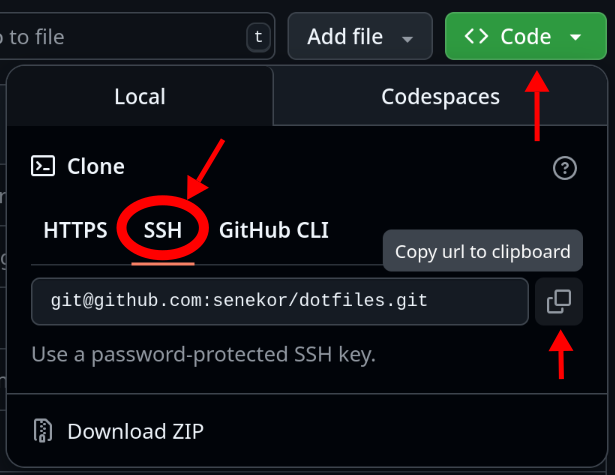
On the repository's GitHub page, click the green "Code" button.
-
Select the SSH tab and copy the URL.
-
Run the clone command in your terminal:
jj git clone <COPIED_URL>
Level 2
This level covers the essentials for collaborating with others. You can also review the level 1 cheat sheet.
Fetch updates from your peers
jj git fetch
Merge your branched-off changes with the main bookmark
jj new main @-
Push your latest commit to a new bookmark
jj git push --change @-
Branching history
Reset your progress
Reset your progress
To reset your progress to the start of this chapter, run the following command:
curl https://s2p2.github.io/jj-for-everyone/reset.sh | bash -s branch
cd ~/jj-tutorial/repo
So far, we've worked solo. Let's simulate a collaboration to see how Jujutsu handles branching.
Two developers, Alice and Bob, are working on a project.
- Alice will add a
hello.pyscript. - Bob will update
README.md.
First, Alice creates hello.py:
echo 'print("Hello, world!")' > hello.py
And makes a commit:
jj commit -m "Add Python script for greeting the world

Printing the text \"Hello, world!\" is a classic exercise in introductory
programming courses. It's easy to complete in basically any language and
makes students feel accomplished and curious for more at the same time."
Run jj log:
@  svplvpro alice@local 2025-07-22 21:17:41 4db2d0d0
│  (empty) (no description set)
○  zzywylnt alice@local 2025-07-22 21:17:31 git_head() f8e44920
│  Add Python script for greeting the world
◆  kxqyrwux alice@local 2025-07-22 21:14:46 main ffdf52d0
│  Add project description to readme
~
Meanwhile, Bob works on a separate clone of the repository, unaware of Alice's new commit. We'll simulate this by cloning the remote again and configuring it for Bob.
jj git clone ~/jj-tutorial/remote ~/jj-tutorial/repo-bob
cd ~/jj-tutorial/repo-bob
jj config set --repo user.name Bob
jj config set --repo user.email bob@local
jj metaedit --update-author
jj log
@  quolxwkk bob@local 2025-07-22 21:19:11 3ffac111
│  (empty) (no description set)
◆  kxqyrwux alice@local 2025-07-22 21:14:46 main git_head() ffdf52d0
│  Add project description to readme
~
Bob updates the README.md, commits his changes, and pushes to main first:
echo "# jj-tutorial

The file hello.py contains a script that greets the world.
It can be executed with the command 'python hello.py'.
Programming is fun!" > README.md

jj commit -m "Document hello.py in README.md

The file hello.py doesn't exist yet, because Alice is working on that.
Once our changes are combined, this documentation will be accurate."

jj bookmark move main --to @-
jj git push
A little later, Alice finishes her work and tries to push, but it fails because the remote main bookmark has moved.
cd ~/jj-tutorial/repo
jj bookmark move main --to @-
jj git push
Changes to push to origin:
  Move forward bookmark main from cd5f3fff9c7b to e90b597ed78e
Error: Failed to push some bookmarks
Hint: The following references unexpectedly moved on the remote:
  refs/heads/main (reason: stale info)
Hint: Try fetching from the remote, then make the bookmark point to where
       ↪ you want it to be, and push again.
Following the error's hint, Alice fetches the latest changes. jj git fetch downloads new commits and bookmarks from the remote.
jj git fetch
After fetching, her log shows that the history has diverged into two branches:
@  svplvpro alice@local 2025-07-22 21:17:41 4db2d0d0
│  (empty) (no description set)
○  zzywylnt alice@local 2025-07-22 21:17:31 main?? main@git git_head() f8e44920
│  Add Python script for greeting the world
│ ◆  quolxwkk bob@local 2025-07-22 21:22:22 main?? main@origin 8d538390
├─╯  Document hello.py in README.md
◆  kxqyrwux alice@local 2025-07-22 21:14:46 ffdf52d0
│  Add project description to readme
~
This happened because Alice and Bob both created new commits based on the same parent. Jujutsu prevented Alice's push to stop her from accidentally overwriting Bob's work.
Notice the main bookmark appears twice with question marks (??). This conflict means Jujutsu doesn't know where main should point: to Alice's local commit or Bob's commit from the remote.
- A bookmark is a named pointer to a single commit.
- A branch is specified by its tip, which is also a single commit. However, a branch refers to the set of commits that includes the tip and all of its ancestors.
A bookmark often names the tip of a branch. For example, the main bookmark points to the tip of what we call "the main branch". People who primarily use Git often use the word "branch" for both concepts.
To proceed, Alice and Bob need to combine their changes into a single version. We'll cover how in the next chapter.
Inspecting a commit
Reset your progress
Reset your progress
To reset your progress, run this command and cd into the tutorial repository:
curl https://s2p2.github.io/jj-for-everyone/reset.sh | bash -s show
cd ~/jj-tutorial/repo
Alice sees Bob also made changes. To check if they conflict with her own, she inspects his commit using jj show on the main@origin remote bookmark.
jj show main@origin
Commit ID: 8d53839037b21e262e410e087606925f7582914e
Change ID: quolxwkkstmturozxxxrkkpxxxnnosry
Bookmarks: main?? main@origin
Author   : Bob <bob@local> (2025-07-22 21:22:17)
Committer: Bob <bob@local> (2025-07-22 21:22:22)

    Document hello.py in README.md

    The file hello.py doesn't exist yet, because Alice is working on that.
    Once our changes are combined, this documentation will be accurate.

Modified regular file README.md:
   1    1: # jj-tutorial
   2    2:
   3     : This is a toy repository for learning Jujutsu.
        3: The file hello.py contains a script that greets the world.
        4: It can be executed with the command 'python hello.py'.
        5: Programming is fun!
The jj show command provides more detail than jj log:
- Commit and Change IDs: Shows the full IDs, not just the short prefixes.
- Bookmarks: Lists any bookmarks pointing to this commit.
- Author and Committer: Includes full author/committer info and timestamps.
- Commit Message: Displays the complete message, including the body.
- Diff: Shows the precise file changes, with additions in green and removals in red.
Alice confirms the changes are compatible: Bob only modified README.md, while she added hello.py. Now she can combine them.
Creating a merge commit
Reset your progress
Reset your progress
To reset your progress to the start of this chapter, run the following command:
curl https://s2p2.github.io/jj-for-everyone/reset.sh | bash -s merge
cd ~/jj-tutorial/repo
To combine changes from multiple commits, create a merge commit. A merge commit has two or more parent commits.
The command jj commit actually does two things at once:
- Adds a description to the commit you just finished.
- Starts a new commit on top of it.
Unfortunately it can't create merge commits.
jj new is used for merges because it can specify multiple parents.
Create a merge commit from main@origin and the previous commit (@-):
jj new main@origin @-
The jj log graph now shows a new commit with two parents:
@    twywpklt alice@local 2025-07-22 21:26:35 764f3651
├─╮  (empty) (no description set)
│ ○  zzywylnt alice@local 2025-07-22 21:17:31 main?? main@git f8e44920
│ │  Add Python script for greeting the world
◆ │  quolxwkk bob@local 2025-07-22 21:22:22 main?? main@origin git_head() 8d538390
├─╯  Document hello.py in README.md
◆  kxqyrwux alice@local 2025-07-22 21:14:46 ffdf52d0
│  Add project description to readme
~
Confirm that the new commit contains the combined changes:
cat README.md
cat hello.py
If changes overlap, Jujutsu creates a conflict that you must resolve manually. This is a topic for a later chapter.
Finally, add a description to the merge commit, update the main bookmark, and push:
jj commit -m "Merge code and documentation for hello-world"
jj bookmark move main --to @-
jj git push
By default, jj log now hides this merge history. To view all commits, use jj log --revisions 'all()' or jj log -r 'all()'.
Excluding files from version control
Reset your progress
Reset your progress
To reset your progress to the start of this chapter, run the following command:
curl https://s2p2.github.io/jj-for-everyone/reset.sh | bash -s ignore
cd ~/jj-tutorial/repo
Let's switch to Bob's repository.
cd ~/jj-tutorial/repo-bob
Done with his part of the assignment, he's already thinking about the submission.
The teacher expects to receive a tarball called submission_alice_bob.tar.gz.
After a little trial and error, he comes up with the following command to create the tarball:
tar czf submission_alice_bob.tar.gz README.md
(Go ahead and run it!)
Bob wants to spare Alice the hassle of having to figure that out, in case she ends up making the final submission. He decides to add it to the documentation:
echo "
## Submission

Run the following command to create the submission tarball:

~~~sh
tar czf submission_alice_bob.tar.gz [FILE...]
~~~" >> README.md
Bob is careful to push only clean commits to the remote shared with Alice.
(Be like Bob!)
He double-checks the content of his commit with jj show:
Commit ID: 596961f1e4aaa66f50b918902efbc839122184f4
Change ID: vtkxsvmtporzvtpovlpqvytrpzxyuykn
Author   : Bob <bob@local> (2025-08-04 20:38:40)
Committer: Bob <bob@local> (2025-08-04 20:38:59)

    (no description set)

Modified regular file README.md:
    ...
   3    3: The file hello.py contains a script that greets the world.
   4    4: It can be executed with the command 'python hello.py'.
   5    5: Programming is fun!
        6:
        7: ## Submission
        8:
        9: Run the following command to create the submission tarball:
       10:
       11: ~~~sh
       12: tar czf submission_alice_bob.tar.gz [FILE...]
       13: ~~~
Added regular file submission_alice_bob.tar.gz:
    (binary)
Oh no! It looks like the result of Bob's research was recorded in the commit.
The tarball submission_alice_bob.tar.gz should not be tracked in version control.
To exclude files, use a .gitignore file. It can contain file names, directories, and patterns for files to ignore.
Add a pattern for tarballs to .gitignore. The * is a glob that matches any filename.
echo "*.tar.gz" > .gitignore
Ignoring files globally
Ignoring files globally
To ignore files across all projects, add them to a global ignore file. This is useful for editor-specific or OS-specific files like .DS_Store on macOS.
echo ".DS_Store" >> ~/.gitignore
Let's check the commit again.
Commit ID: c9bc30b48922c767c553392709f212b8c0815ceb
Change ID: vtkxsvmtporzvtpovlpqvytrpzxyuykn
Author   : Bob <bob@local> (2025-08-04 20:38:40)
Committer: Bob <bob@local> (2025-08-04 20:41:13)

    (no description set)

Added regular file .gitignore:
        1: *.tar.gz
Modified regular file README.md:
    ...
   3    3: The file hello.py contains a script that greets the world.
   4    4: It can be executed with the command 'python hello.py'.
   5    5: Programming is fun!
        6:
        7: ## Submission
        8:
        9: Run the following command to create the submission tarball:
       10:
       11: ~~~sh
       12: tar czf submission_alice_bob.tar.gz [FILE...]
       13: ~~~
Added regular file submission_alice_bob.tar.gz:
    (binary)
The tarball is still tracked. Jujutsu only considers .gitignore for new, untracked files.
To stop tracking an already-tracked file, use jj file untrack.
jj file untrack submission_alice_bob.tar.gz
The untrack command only works if the file is already listed in .gitignore.
Let's check the commit one more time.
Commit ID: 0f0015beb53d8c83f3bbcfe938a9bf031834c3e4
Change ID: vtkxsvmtporzvtpovlpqvytrpzxyuykn
Author   : Bob <bob@local> (2025-08-04 20:38:40)
Committer: Bob <bob@local> (2025-08-04 20:41:36)

    (no description set)

Added regular file .gitignore:
        1: *.tar.gz
Modified regular file README.md:
    ...
   3    3: The file hello.py contains a script that greets the world.
   4    4: It can be executed with the command 'python hello.py'.
   5    5: Programming is fun!
        6:
        7: ## Submission
        8:
        9: Run the following command to create the submission tarball:
       10:
       11: ~~~sh
       12: tar czf submission_alice_bob.tar.gz [FILE...]
       13: ~~~
The commit is clean. Now, add a description.
jj commit -m "Add submission instructions"
Rebasing
Reset your progress
Reset your progress
To reset your progress, run:
curl https://s2p2.github.io/jj-for-everyone/reset.sh | bash -s rebase
cd ~/jj-tutorial/repo-bob
We are in Bob's repo.
cd ~/jj-tutorial/repo-bob
When Bob tries to push his new commit, it fails, just like it did for Alice.
jj bookmark move main --to @-
jj git push
The solution is to fetch the remote changes first.
jj git fetch
Bob's log now shows that his changes and Alice's have diverged:
@  ztyvwqll bob@local 2025-07-22 21:29:52 93f27644
│  (empty) (no description set)
○  smswwyok bob@local 2025-07-22 21:29:27 main?? main@git git_head() e583fa6e
│  Add submission instructions
│ ◆  twywpklt alice@local 2025-07-22 21:27:24 main?? main@origin 606959ce
╭─┤  (empty) Merge code and documentation for hello-world
│ │
│ ~
│
◆  quolxwkk bob@local 2025-07-22 21:22:22 8d538390
│  Document hello.py in README.md
~
Unlike Alice, who created a merge commit, Bob prefers a linear history. He will rebase his changes on top of Alice's. The jj rebase command moves commits from one "base" to another.
Bob specifies the destination (-d or --destination) for his commit: the remote main bookmark.
jj rebase -d main@origin
The log now shows a straight line, with Bob's commit directly following Alice's:
@  ztyvwqll bob@local 2025-07-22 21:30:38 e911e4c7
│  (empty) (no description set)
○  smswwyok bob@local 2025-07-22 21:30:38 main* git_head() 002bd1179
│  Add submission instructions
◆  twywpklt alice@local 2025-07-22 21:27:24 main@origin 606959ce
│  (empty) Merge code and documentation for hello-world
~
By rebasing, Bob has rewritten history. His commit now descends from Alice's. Now he can push:
jj git push
Merge vs. Rebase
Both are valid ways to integrate divergent changes. Here's a hopefully balanced overview of the main trade-off:
| Advantage | Disadvantage | |
|---|---|---|
| Merge | Preserves history exactly as it happened. | Can result in a tangled, hard-to-read history. |
| Rebase | Results in an easy-to-read, linear history. | Rewrites history, obscuring the original order. |
Adding more bookmarks
Reset your progress
Reset your progress
To reset your progress to the start of this chapter, run the following command:
curl https://s2p2.github.io/jj-for-everyone/reset.sh | bash -s more_bookmarks
cd ~/jj-tutorial/repo
Let's switch back to Alice:
cd ~/jj-tutorial/repo
Alice attempts to get ahead by adding a loop to the program:
echo 'for (i = 0; i < 10; i = i + 1):
    print("Hello, world!")' > hello.py
Unfortunately, running python hello.py prints an error:
  File "/home/user/jj-tutorial/repo/hello.py", line 1
    for (i = 0; i < 10; i = i + 1):
         ^^^^^
SyntaxError: invalid syntax. Maybe you meant '==' or ':=' instead of '='?
She wants to save this experiment for later reference without breaking main. First, she commits:
jj commit -m "WIP: Add for loop (need to fix syntax)"
Pushing this work-in-progress (WIP) commit to main would be a mistake. The main bookmark should always point to stable, working code. Anyone else pulling from main would get her broken code, potentially blocking their work or getting it accidentally included in a project submission.
To share her experiment safely, she can push it to a separate bookmark. While she could name it manually (e.g., alice/add-for-loop), she can also let Jujutsu generate a name and push immediately:
jj git push --change @-
@  qrtwnykn alice@local 2025-07-25 20:37:05 c2f4e43e
│  (empty) (no description set)
○  rvpkroku alice@local 2025-07-25 20:37:05 push-rvpkrokuqrxt git_head() b9d02faf
│  WIP: Add for loop (need to fix syntax)
◆  stlxrmun alice@local 2025-07-25 20:37:05 main 530ad636
│  (empty) Merge code and documentation for hello-world
~
Jujutsu generated the bookmark push-blabla using the change ID.
Note: You can abbreviate --change as -c. Use jj git push --help to see more available flags.
Tracking the new bookmark is also handled automatically for the same reason, so there's no need to run jj bookmark track.
Alice's experiment is now safely stored on the remote without interfering with main.
Navigating the history
Reset your progress
Reset your progress
To reset your progress to the start of this chapter, run the following command:
curl https://s2p2.github.io/jj-for-everyone/reset.sh | bash -s navigate
cd ~/jj-tutorial/repo
After Bob pushes a commit, Alice fetches the changes:
jj git fetch
@  qrtwnykn alice@local 2025-07-25 20:37:05 c2f4e43e
│  (empty) (no description set)
○  rvpkroku alice@local 2025-07-25 20:37:05 push-rvpkrokuqrxt git_head() b9d02faf
│  WIP: Add for loop (need to fix syntax)
│ ◆  ttqlsyyr bob@local 2025-07-25 20:37:05 main 207a18a9
├─╯  Add submission instructions
◆  stlxrmun alice@local 2025-07-25 20:37:05 530ad636
│  (empty) Merge code and documentation for hello-world
~
Bob's changes are on a different branch. Instead of merging or rebasing, we want to view his work while leaving Alice's changes on a separate branch for later.
The solution is to create a new, empty commit on top of Bob's main branch.
jj new main
@  uumounxy alice@local 2025-07-25 20:52:32 e1bcff24
│  (empty) (no description set)
◆  ttqlsyyr bob@local 2025-07-25 20:37:05 main git_head() 207a18a9
│  Add submission instructions
│ ○  rvpkroku alice@local 2025-07-25 20:37:05 push-rvpkrokuqrxt b9d02faf
├─╯  WIP: Add for loop (need to fix syntax)
◆  stlxrmun alice@local 2025-07-25 20:37:05 530ad636
│  (empty) Merge code and documentation for hello-world
~
jj automatically deletes empty commits (no changes, no description), which keeps the log tidy. This makes jj new perfect for navigating the history. Running jj new <revision> checks out the project state at that revision by creating a new, temporary empty commit.
For example, let's view an older commit. Here's the full log for reference:
@  uumounxy alice@local 2025-07-25 20:52:32 e1bcff24
│  (empty) (no description set)
◆  ttqlsyyr bob@local 2025-07-25 20:37:05 main git_head() 207a18a9
│  Add submission instructions
│ ○  rvpkroku alice@local 2025-07-25 20:37:05 push-rvpkrokuqrxt b9d02faf
├─╯  WIP: Add for loop (need to fix syntax)
◆    stlxrmun alice@local 2025-07-25 20:37:05 530ad636
├─╮  (empty) Merge code and documentation for hello-world
│ ◆  uxvvmtos alice@local 2025-07-25 20:37:05 a9946efd
│ │  Add Python script for greeting the world
◆ │  qxkprvsu bob@local 2025-07-25 20:37:05 9e05718a
├─╯  Document hello.py in README.md
◆  xsswkrsu alice@local 2025-07-25 20:37:05 695f460b
│  Add project description to readme
◆  pxvxmtks alice@local 2025-07-25 20:36:59 20c6a3b1
│  Add readme with project title
◆  zzzzzzzz root() 00000000
You can identify it using the description() function, which selects a commit by its description string.
jj new 'description("Document hello.py in README.md")'
Note the outer single quotes, which prevent your shell from interpreting the inner double quotes.
To check, run jj log:
@  uxuqnppz alice@local 2025-07-25 21:16:00 abba4830
│  (empty) (no description set)
│ ◆  ttqlsyyr bob@local 2025-07-25 20:37:05 main 207a18a9
│ │  Add submission instructions
│ │ ○  rvpkroku alice@local 2025-07-25 20:37:05 push-rvpkrokuqrxt b9d02faf
│ ├─╯  WIP: Add for loop (need to fix syntax)
│ ◆  stlxrmun alice@local 2025-07-25 20:37:05 530ad636
╭─┤  (empty) Merge code and documentation for hello-world
│ │
│ ~
│
◆  qxkprvsu bob@local 2025-07-25 20:37:05 git_head() 9e05718a
│  Document hello.py in README.md
~
The working directory is now at that older state. To return to main for the next chapter, run:
jj new main
Alice now has Bob's latest changes. She can always return to her loop experiment later with jj new.
Now you have the basic skills to collaborate on projects with other people. Let's summarize what we've learned:
- A branching history is normal when multiple people work together.
- You can combine changes from a branched history by creating a merge commit or by rebasing one branch of commits on another.
- Files which do not belong in version control can be excluded with
.gitignoreand
jj file untrack. - Work-in-progress changes can be stored on the remote with additional bookmarks, avoiding chaos on the main branch.
- You can navigate to any branch or past version of your repository with
jj new.
It's time to take a break from this tutorial and practice what you've learned on a real project. Level 3 will teach you how to solve everyday problems like merge conflicts, so I recommend you come back for it relatively soon.
Level 3
This level covers essential problem-solving skills like conflict resolution and restoring files from history, bringing you to the level of an average software developer.
Here's the cheat sheet for level 3. You can also review the level 2 cheat sheet.
Undo or redo the last operation
jj undo
jj redo
Track a remote bookmark to enable pushing
jj bookmark track <NAME>@origin
Abandon a commit (and its bookmarks)
jj abandon <CHANGE_ID>
Restore a file from a specific commit
jj restore [--from <CHANGE_ID>] [FILE_TO_RESTORE]
Undoing mistakes
Reset your progress
Reset your progress
To reset your progress to the start of this chapter, run the following command:
curl https://s2p2.github.io/jj-for-everyone/reset.sh | bash -s undo
cd ~/jj-tutorial/repo
Jujutsu keeps a log of every operation performed on the repository, not just the commit history. This lets you easily undo mistakes.
For example, let's fix a hastily written commit message. First, we'll check our current state.
cd ~/jj-tutorial/repo
jj log
@  pzsymsll alice@local 2025-09-10 20:52:56 1be9c292
│  (empty) (no description set)
◆  lyquuqkl bob@local 2025-09-10 20:52:56 main git_head() 2ae165d3
│  Add submission instructions
│ ○  vtnrtqsn alice@local 2025-09-10 20:52:56 push-vtnrtqsnrzqx d517a86d
├─╯  WIP: Add for loop (need to fix syntax)
◆  tlwyrrmy alice@local 2025-09-10 20:52:56 ffc6841f
│  (empty) Merge code and documentation for hello-world
~
Making a Mistake
Let's add more greetings and create a commit with a poor description.
echo 'print("Hallo, Welt!")' >> hello.py
echo 'print("Bonjour, le monde!")' >> hello.py
jj commit -m "code improvements"
@  yxmkmosm alice@local 2025-09-10 20:53:46 d28a8261
│  (empty) (no description set)
○  pzsymsll alice@local 2025-09-10 20:53:46 git_head() 050b543b
│  code improvements
◆  lyquuqkl bob@local 2025-09-10 20:52:56 main 2ae165d3
│  Add submission instructions
│ ○  vtnrtqsn alice@local 2025-09-10 20:52:56 push-vtnrtqsnrzqx d517a86d
├─╯  WIP: Add for loop (need to fix syntax)
◆  tlwyrrmy alice@local 2025-09-10 20:52:56 ffc6841f
│  (empty) Merge code and documentation for hello-world
~
Undoing the mistake
To fix this, we restore the repository to its previous state with jj undo.
jj undo
@  pzsymsll alice@local 2025-09-10 20:53:46 94a7ca39
│  (no description set)
◆  lyquuqkl bob@local 2025-09-10 20:52:56 main git_head() 2ae165d3
│  Add submission instructions
│ ○  vtnrtqsn alice@local 2025-09-10 20:52:56 push-vtnrtqsnrzqx d517a86d
├─╯  WIP: Add for loop (need to fix syntax)
◆  tlwyrrmy alice@local 2025-09-10 20:52:56 ffc6841f
│  (empty) Merge code and documentation for hello-world
~
We're back to the state before the bad commit. Now we can commit again with a better message.
jj commit -m "Print German and French greetings as well"
@  npnpqkvz alice@local 2025-09-10 20:54:33 8f11c4f5
│  (empty) (no description set)
○  pzsymsll alice@local 2025-09-10 20:54:33 git_head() df82ee49
│  Print German and French greetings as well
◆  lyquuqkl bob@local 2025-09-10 20:52:56 main 2ae165d3
│  Add submission instructions
│ ○  vtnrtqsn alice@local 2025-09-10 20:52:56 push-vtnrtqsnrzqx d517a86d
├─╯  WIP: Add for loop (need to fix syntax)
◆  tlwyrrmy alice@local 2025-09-10 20:52:56 ffc6841f
│  (empty) Merge code and documentation for hello-world
~
Undoing and Redoing Multiple Operations
jj undo works like Ctrl+Z; you can run it multiple times to go further back. It even undoes file system changes, because jj snapshots your workspace before running a command.
Let's undo the last three operations: the good commit, the file modifications, and the jj new main command from the previous chapter.
the good commit:
jj undo
@  pzsymsll alice@local 2025-09-10 20:53:46 94a7ca39
│  (no description set)
◆  lyquuqkl bob@local 2025-09-10 20:52:56 main git_head() 2ae165d3
│  Add submission instructions
│ ○  vtnrtqsn alice@local 2025-09-10 20:52:56 push-vtnrtqsnrzqx d517a86d
├─╯  WIP: Add for loop (need to fix syntax)
◆  tlwyrrmy alice@local 2025-09-10 20:52:56 ffc6841f
│  (empty) Merge code and documentation for hello-world
~
the file modifications:
# hello.py
print("Hello, world!")
print("Hallo, Welt!")
print("Bonjour, le monde!")
jj undo
# hello.py
print("Hello, world!")
jj log to check:
@  pzsymsll alice@local 2025-09-10 20:52:56 1be9c292
│  (empty) (no description set)
◆  lyquuqkl bob@local 2025-09-10 20:52:56 main git_head() 2ae165d3
│  Add submission instructions
│ ○  vtnrtqsn alice@local 2025-09-10 20:52:56 push-vtnrtqsnrzqx d517a86d
├─╯  WIP: Add for loop (need to fix syntax)
◆  tlwyrrmy alice@local 2025-09-10 20:52:56 ffc6841f
│  (empty) Merge code and documentation for hello-world
~
One last time: jj new main command from the previous chapter.
jj undo
@  wkqpyqlm alice@local 2025-09-10 20:52:56 640e22bf
│  (empty) (no description set)
│ ◆  lyquuqkl bob@local 2025-09-10 20:52:56 main 2ae165d3
│ │  Add submission instructions
│ │ ○  vtnrtqsn alice@local 2025-09-10 20:52:56 push-vtnrtqsnrzqx d517a86d
│ ├─╯  WIP: Add for loop (need to fix syntax)
│ ◆  tlwyrrmy alice@local 2025-09-10 20:52:56 ffc6841f
╭─┤  (empty) Merge code and documentation for hello-world
│ │
│ ~
│
◆  uvxzzlmr bob@local 2025-09-10 20:52:55 git_head() 60e09461
│  Document hello.py in README.md
~
The jj redo command re-applies undone operations, like Ctrl+Shift+Z. Let's use it to get back to our most recent state.
jj redo
jj redo
jj redo
@  npnpqkvz alice@local 2025-09-10 20:54:33 8f11c4f5
│  (empty) (no description set)
○  pzsymsll alice@local 2025-09-10 20:54:33 git_head() df82ee49
│  Print German and French greetings as well
◆  lyquuqkl bob@local 2025-09-10 20:52:56 main 2ae165d3
│  Add submission instructions
│ ○  vtnrtqsn alice@local 2025-09-10 20:52:56 push-vtnrtqsnrzqx d517a86d
├─╯  WIP: Add for loop (need to fix syntax)
◆  tlwyrrmy alice@local 2025-09-10 20:52:56 ffc6841f
│  (empty) Merge code and documentation for hello-world
~
Try jj redo one more time, you'd get an error that there's nothing to redo.
Important Considerations
-
Overwriting History: If you
undooperations and then create a new one, the undone states become inaccessible viajj redo. This is similar to standard undo/redo stacks. However, unlike most graphical applications, Jujutsu has advanced commands to recover these "hidden" states, which is a topic for another day. -
Remote Operations: Do not
jj undoa push operation (e.g.,jj git push). It only affects your local repository and can cause conflicts with the remote. If you do it by accident, immediatelyjj redoit. -
Local History: The operation log is local to your machine and is not cloned or pushed.
jj undoonly works on the history created in your local repository clone.
Tracking remote bookmarks
Reset your progress
Reset your progress
To reset your progress to the start of this chapter, run the following command:
curl https://s2p2.github.io/jj-for-everyone/reset.sh | bash -s track
cd ~/jj-tutorial/repo
This chapter simulates starting fresh by re-cloning a repository, as if on a new computer.
# Simulate a fresh clone
cd ~
rm -rf ~/jj-tutorial/repo
jj git clone ~/jj-tutorial/remote ~/jj-tutorial/repo
cd ~/jj-tutorial/repo

# roleplay as Alice
jj config set --repo user.name "Alice"
jj config set --repo user.email "alice@local"
jj metaedit --update-author
Let's confirm everything went well with jj log:
@  yuxnowup alice@local 2025-08-23 20:01:42 1043cd89
│  (empty) (no description set)
◆  wkywrwmu bob@local 2025-08-23 20:01:22 main git_head() 36c08763
│  Add submission instructions
~
We've got two issues. First, a commit that was never pushed is now lost permanently. This is a reminder to always push your work. The only fix is to recreate.
echo 'print("Hallo, Welt!")' >> hello.py
echo 'print("Bonjour, le monde!")' >> hello.py
jj commit -m "Print German and French grettings as well"
and push it:
jj bookmark move main -t @-
jj git push
Second, a commit that was pushed is not visible in the default log. It exists on the remote but is hidden. You can find it with jj log --revisions 'all()':
@  nkvmznqz alice@local 2025-08-23 21:18:57 e579e9a8
│  (empty) (no description set)
◆  vmztslml alice@local 2025-08-23 21:18:57 main git_head() a928e18a
│  Print German and French grettings as well
◆  vwkzzxum bob@local 2025-08-23 21:18:20 7a76ce52
│  Add submission instructions
│ ◆  zkwmvzlq alice@local 2025-08-23 21:18:20 push-zkwmvzlqluot@origin a7cd6be9
├─╯  WIP: Add for loop (need to fix syntax)
◆    pqoyoror alice@local 2025-08-23 21:18:20 94608da3
├─╮  (empty) Merge code and documentation for hello-world
│ ◆  owrwuqyr alice@local 2025-08-23 21:18:20 22f32788
│ │  Add Python script for greeting the world
◆ │  vpzorutw bob@local 2025-08-23 21:18:20 9148e791
├─╯  Document hello.py in README.md
◆  pkpoursq alice@local 2025-08-23 21:18:20 02f136e2
│  Add project description to readme
◆  tkpkmszl alice@local 2025-08-23 21:18:20 66c2503f
│  Add readme with project title
◆  zzzzzzzz root() 00000000
The bookmark appears as push-zkwmvzlqluot@origin. The @origin suffix indicates a remote bookmark that is not tracked locally.
Bookmark tracking
When you clone a repository, jj only tracks the main bookmark by default. Other remote bookmarks are left untracked to avoid cluttering your log with collaborators' work-in-progress.
To make a remote bookmark visible in your default log and to be able to push updates to it, you must explicitly track it:
jj bookmark track push-zkwmvzlqluot@origin
Now, a regular jj log will show the bookmark again:
@  nkvmznqz alice@local 2025-08-23 21:18:57 e579e9a8
│  (empty) (no description set)
◆  vmztslml alice@local 2025-08-23 21:18:57 main git_head() a928e18a
│  Print German and French grettings as well
~  (elided revisions)
│ ○  zkwmvzlq alice@local 2025-08-23 21:18:20 push-zkwmvzlqluot a7cd6be9
├─╯  WIP: Add for loop (need to fix syntax)
◆  pqoyoror alice@local 2025-08-23 21:18:20 94608da3
│  (empty) Merge code and documentation for hello-world
~
Resolving merge conflicts
Reset your progress
Reset your progress
To reset your progress to the start of this chapter, run the following command:
curl https://s2p2.github.io/jj-for-everyone/reset.sh | bash -s conflict
cd ~/jj-tutorial/repo
After learning about loops, Alice wants to update her Python script.
jj new 'description("WIP: Add for loop")'
She fixes the incorrect loop syntax in hello.py.
for _ in range(10):
    print("Hello, world!")
You can edit the file manually or run this command:
echo 'for _ in range(10):
    print("Hello, world!")' > hello.py
Then she commits the correction:
jj commit -m "Fix loop syntax"
@  zzlzryut alice@local 2025-08-23 21:21:54 5b7e967e
│  (empty) (no description set)
○  oxnuoryz alice@local 2025-08-23 21:21:54 git_head() c6042124
│  Fix loop syntax
○  tvrzpsvy alice@local 2025-08-23 21:21:53 push-tvrzpsvypkqk 6e468237
│  WIP: Add for loop (need to fix syntax)
│ ◆  quvtvrzl alice@local 2025-08-23 21:21:54 main d0c3efcd
│ │  Print German and French greetings as well
│ ~  (elided revisions)
├─╯
◆  krymmwqm alice@local 2025-08-23 21:21:53 1581674f
│  (empty) Merge code and documentation for hello-world
~
Creating a conflict
Alice now merges her changes into main with a new commit:
jj new main @-
Working copy  (@) now at: srpklysn 0f64cf5a (conflict) (empty) (no description set)
Parent commit (@-)      : quvtvrzl d0c3efcd main | Print German and French greetings as well
Parent commit (@-)      : oxnuoryz c6042124 Fix loop syntax
Added 1 files, modified 2 files, removed 0 files
Warning: There are unresolved conflicts at these paths:
hello.py    2-sided conflict
This results in a merge conflict. The new commit is marked with (conflict) because both main and Alice's branch modified hello.py. Jujutsu cannot automatically combine these changes.
@    lozqokkt alice@local 2025-08-23 21:34:35 fe21ff1e conflict
├─╮  (empty) (no description set)
│ ○  oxnuoryz alice@local 2025-08-23 21:21:54 c6042124
│ │  Fix loop syntax
│ ○  tvrzpsvy alice@local 2025-08-23 21:21:53 push-tvrzpsvypkqk 6e468237
│ │  WIP: Add for loop (need to fix syntax)
◆ │  quvtvrzl alice@local 2025-08-23 21:21:54 main git_head() d0c3efcd
│ │  Print German and French greetings as well
~ │  (elided revisions)
├─╯
◆  krymmwqm alice@local 2025-08-23 21:21:53 1581674f
│  (empty) Merge code and documentation for hello-world
~
Reading conflict markers
The conflicted file hello.py now contains markers showing the changes from both sides of the merge.
<<<<<<< Conflict 1 of 1
%%%%%%% Changes from base to side #1
 print("Hello, world!")
+print("Hallo, Welt!")
+print("Bonjour, le monde!")
+++++++ Contents of side #2
for _ in range(10):
    print("Hello, world!")
>>>>>>> Conflict 1 of 1 ends
The content between <<<<<<< and >>>>>>> shows the conflicting changes. The "side" numbers correspond to the order of the parent commits in the jj new main @- command.
side #1ismain(the first parent). Its changes are shown in a diff format:+(plus sign): An added line.-(minus sign): A removed line. A modified line is shown as a-followed by a+.- A space (
side #2is@-(the second parent). Its section shows the final content from Alice's branch.
Fixing a conflict
Resolving a conflict requires manually editing the file to the desired state, as an automatic merge is impossible. The correct outcome depends on intent.
By example, there are three different reasonable merges of these changes
By example, there are three different reasonable merges of these changes
-
Only repeat the English greeting:
for _ in range(10): print("Hello, world!") print("Hallo, Welt!") print("Bonjour, le monde!") -
Repeat all languages and interleave them:
for _ in range(10): print("Hello, world!") print("Hallo, Welt!") print("Bonjour, le monde!") -
Repeat all languages but keep them separate:
for _ in range(10):
    print("Hello, world!")
for _ in range(10):
    print("Hallo, Welt!")
for _ in range(10):
    print("Bonjour, le monde!")
Here, we'll combine the changes to repeat all greetings.
Replace the content of hello.py with the correct code, removing all conflict markers.
echo 'for _ in range(10):
    print("Hello, world!")
    print("Hallo, Welt!")
    print("Bonjour, le monde!")' > hello.py
With the file saved, the conflict is resolved. The jj log will no longer show the (conflict) marker.
@    kprnqvtk alice@local 2025-08-24 07:41:36 b46df36e
├─╮  (no description set)
│ ○  ttuuwuvl alice@local 2025-08-24 07:38:02 c8479848
│ │  Fix loop syntax
│ ○  uxpxzolo alice@local 2025-08-24 07:38:01 push-uxpxzoloznts b326e556
│ │  WIP: Add for loop (need to fix syntax)
◆ │  wruksqvz alice@local 2025-08-24 07:38:02 main git_head() 118457e4
│ │  Print German and French greetings as well
~ │  (elided revisions)
├─╯
◆  kropmvym alice@local 2025-08-24 07:38:01 8c90e9fc
│  (empty) Merge code and documentation for hello-world
~
A conflict resolution is considered a change itself, so the commit isn't marked as "(empty)" like the first merge commit we made. Let's commit this and push to main:
jj commit -m "Merge repetition and translation of greeting"
jj bookmark move main --to @-
jj git push
Conflicts during a rebase
Conflicts during a rebase
Conflicts can also occur during a rebase, but these are more complex to resolve. If you encounter one, for now, it's best to abort with jj undo and create a merge commit instead.
Tools for conflict resolution
Tools for conflict resolution
While manually editing conflicted files always works, various tools can simplify the process.
Jujutsu has built-in tools like :ours and :theirs to quickly pick one side of a conflict and discard the other.
# keep "our" changes, throw away "theirs"
jj resolve --tool :ours
You can also integrate powerful external tools. For example, Mergiraf resolves conflicts using the programming language's syntax tree. After installing it, run:
jj resolve --tool mergiraf
Jujutsu also supports custom merge tool configurations.
Deleting commits and bookmarks
Reset your progress
Reset your progress
To reset your progress to the start of this chapter, run the following command:
curl https://s2p2.github.io/jj-for-everyone/reset.sh | bash -s abandon
cd ~/jj-tutorial/repo
Jujutsu makes it easy to manage multiple experiments. Let's create a few:
jj commit -m "Experiment: Migrate to shiny new framework"
jj git push --change @-
jj new main
jj commit -m "Experiment: Improve scalability using microservices"
jj git push --change @-
jj new main
jj commit -m "Experiment: Apply SOLID design patterns"
jj git push --change @-
jj new main
@  vqytywws alice@local 2025-08-31 14:29:56 9bdb2d1d
│  (empty) (no description set)
│ ○  oqsqtxwo alice@local 2025-08-31 14:29:56 push-oqsqtxwowvuw 2ffeb883
├─╯  (empty) Experiment: Apply SOLID design patterns
│ ○  lqpnzsmz alice@local 2025-08-31 14:29:56 push-lqpnzsmzkxry f4cf1d7f
├─╯  (empty) Experiment: Improve scalability using microservices
│ ○  rppuwxxp alice@local 2025-08-31 14:29:56 push-rppuwxxpnkqu 8c44777f
├─╯  (empty) Experiment: Migrate to shiny new framework
◆  snnoxnvq alice@local 2025-08-31 14:29:56 main git_head() 346c0acd
│  Merge repetition and translation of greeting
~
After deciding these experiments are not good ideas, they can be deleted with jj abandon. You can abandon commits one by one, or all at once with a revset:
jj abandon 'description("Experiment")'
Abandoned 3 commits:
  oqsqtxwo 2ffeb883 push-oqsqtxwowvuw | (empty) Experiment: Apply SOLID design patterns
  lqpnzsmz f4cf1d7f push-lqpnzsmzkxry | (empty) Experiment: Improve scalability using microservices
  rppuwxxp 8c44777f push-rppuwxxpnkqu | (empty) Experiment: Migrate to shiny new framework
Deleted bookmarks: push-lqpnzsmzkxry, push-oqsqtxwowvuw, push-rppuwxxpnkqu
Hint: Deleted bookmarks can be pushed by name or all at once with `jj git push --deleted`.
jj abandon also removes local bookmarks pointing to the deleted commits. To sync these deletions with the remote, run:
jj git push --deleted
Duplicate commits when using Git directly
Duplicate commits when using Git directly
While Jujutsu is compatible with Git, directly modifying the repo with tools like git commit can create duplicate commits. This happens because Jujutsu doesn't realize the new Git commit is meant to replace its own working-copy commit, so it safely preserves both.
For example, committing with git after staging a file in jj:
touch some_file
jj status # record new file into working copy
git commit -am "add some file" # create commit with git, bypassing jj
jj log
@  nwstlotv alice@local 2025-08-31 14:44:23 928b48f4
│  (empty) (no description set)
○  yqyzyzzo remo@buenzli.dev 2025-08-31 14:44:22 git_head() 30e0eec4
│  add some file
│ ○  vqytywws alice@local 2025-08-31 14:44:05 70588b87
├─╯  (no description set)
◆  snnoxnvq alice@local 2025-08-31 14:29:56 main 346c0acd
│  Merge repetition and translation of greeting
~
The log shows a branched-off commit that is a duplicate of Jujutsu's previous working copy. The fix is to simply jj abandon the redundant commit.
Clean up the duplicate commit:
jj abandon main+ # abandon direct children of main
Immutability
Commands like jj abandon and jj rebase rewrite history. While powerful, rewriting history can be dangerous on shared branches like main, as it can confuse collaborators.
To prevent this, version control systems follow a rule: Never rewrite history on shared branches.
Jujutsu enforces this rule by default. Commits on shared branches are considered immutable. Attempting to modify an immutable commit will fail:
jj abandon main
Error: Commit 346c0acd36db is immutable
Hint: Could not modify commit: snnoxnvq 346c0acd main | Merge repetition and translation of greeting
Hint: Immutable commits are used to protect shared history.
Hint: For more information, see:
      - https://jj-vcs.github.io/jj/latest/config/#set-of-immutable-commits
      - `jj help -k config`, "Set of immutable commits"
Hint: This operation would rewrite 1 immutable commits.
Jujutsu marks immutable commits with a diamond (◆) in the log, while modifiable, mutable commits use a circle (○). This protection applies to all history-editing commands.
Restoring file contents
Reset your progress
Reset your progress
To reset your progress to the start of this chapter, run the following command:
curl https://s2p2.github.io/jj-for-everyone/reset.sh | bash -s restore
cd ~/jj-tutorial/repo
If you accidentally delete a file and make other changes before realizing it, jj restore can help.
For instance, Alice deletes README.md and then modifies hello.py:
rm README.md
echo '    print("In soviet Russia, world greets you!")' >> hello.py
jj show
Commit ID: 79cda7b43c273bb0597b7888b2ff9d3afee4a568
Change ID: nwstlotvuwrnxrupxnplywqvkloupnxu
Author   : Alice <alice@local> (2025-08-31 16:15:13)
Committer: Alice <alice@local> (2025-08-31 16:15:13)

    (no description set)

Removed regular file README.md:
   1     : # jj-tutorial
   2     :
   3     : The file hello.py contains a script that greets the world.
   4     : It can be executed with the command 'python hello.py'.
   5     : Programming is fun!
   6     :
   7     : ## Submission
   8     :
   9     : Run the following command to create the submission tarball:
  10     :
  11     : ~~~sh
  12     : tar czf submission_alice_bob.tar.gz [FILE...]
  13     : ~~~
Modified regular file hello.py:
   1    1: for _ in range(10):
   2    2:     print("Hello, world!")
   3    3:     print("Hallo, Welt!")
   4    4:     print("Bonjour, le monde!")
        5:     print("In soviet Russia, world greets you!")
To restore just README.md without losing other changes, run:
jj restore README.md
Commit ID: f2922ddd5ad552e1e499b461b8ed900d047cea91
Change ID: nwstlotvuwrnxrupxnplywqvkloupnxu
Author   : Alice <alice@local> (2025-08-31 16:15:13)
Committer: Alice <alice@local> (2025-08-31 16:24:18)

    (no description set)

Modified regular file hello.py:
   1    1: for _ in range(10):
   2    2:     print("Hello, world!")
   3    3:     print("Hallo, Welt!")
   4    4:     print("Bonjour, le monde!")
        5:     print("In soviet Russia, world greets you!")
jj restore can also revert a file to its state in any commit using the --from flag. For example, to revert hello.py to a version with no translations:
jj restore --from 'description("Fix loop syntax")' hello.py
Commit ID: c72f36748528f6893316089590374efed90a4214
Change ID: nwstlotvuwrnxrupxnplywqvkloupnxu
Author   : Alice <alice@local> (2025-08-31 16:15:13)
Committer: Alice <alice@local> (2025-08-31 16:43:32)

    (no description set)

Modified regular file hello.py:
   1    1: for _ in range(10):
   2    2:     print("Hello, world!")
   3     :     print("Hallo, Welt!")
   4     :     print("Bonjour, le monde!")
After making changes, commit and push them:
jj commit -m "Remove translations"
jj bookmark move main --to @-
jj git push
You now have the skills to handle most version control problems. Here's a summary of what you've learned:
jj undo: Reverts your repository to a previous state, letting you experiment without fear.jj bookmark track: Lets you work on bookmarks that only exist on the remote.- Merge Conflicts: Resolve by editing the marked files to combine the changes.
jj abandon: Deletes commits you no longer need.jj restore: Restores file contents. By default, it reverts to the parent commit, but you can use--fromto specify any commit.
You're now equipped for most daily tasks. The next level covers rewriting history—a powerful skill for creating a clean and professional commit history.
Feel free to practice these new skills before continuing. To learn more, explore commands with --help and consult the configuration guide.
Must-know secret commands
Hah, did I get you with the clickbait title? :-P
Sorry, that's all I have for you at the moment. Remember, this is concise version of the original guide.
Consider subscribing to original guide releases on GitHub.
Thanks! ❤️